
⚠︎ Run Compare is available to all roles except Driver.
Run Compare displays two run sheets side by side, allowing you to review multiple runs at the same time.
Before you start
-
Make sure you created a Run Sheet Layout.
- Select a layout for Run Compare in your profile.
- Select your name at the bottom of the sidebar.
- Open Profile
- Under Run Sheet, select a layout from Run Compare Run Sheet Style

- Scroll down and Save your settings
This layout determines which blocks appear on your Run Compare page.
ⓘ You can change your layout at any time. The selection applies only to your profile and does not affect other users.
Compare two runs
- Go to OPERATIONS → Protocol → Run Compare
- On the top-left, use the selection bar to choose the Series, Season, Event, Session, and Car
- Select the run tab you want to compare
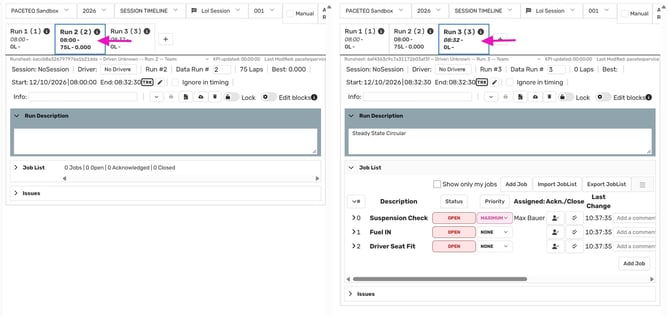
- Apply the same steps on the right Run Sheet
- Review both runs side by side
Each side has independent selections. You can compare runs from different sessions, cars, or events.
⚠️ Changes made on either side are saved to the corresponding run.
💡The same locking, team access, and timing rules apply as on the regular Run Sheet. See Work With Run Sheets for more information.