
Overview
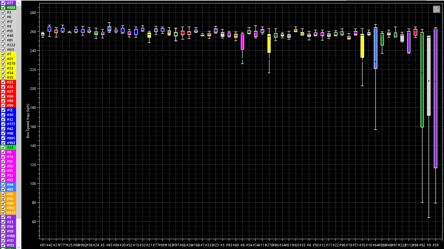
The Speed Distribution Analysis plugin visualizes the distribution of top speeds (from either Speed Trap or a specific Sector) achieved by drivers throughout a session. It offers two main visualization modes: "Probability Density" for assessing speed consistency through distribution curves, and "Box Plot" for a detailed statistical summary of speed ranges, including medians, quartiles, and outliers. This plugin is essential for comparing straight-line performance, evaluating the effectiveness of the Drag Reduction System (DRS), and analyzing overall driver consistency.
Main Features
The core of the plugin is the graph area where speed data is visualized. The plugin processes speed data from either the session's Speed Trap or a user-defined Sector Speed.
Visualization Modes
You can switch between two distinct modes for analysis:
- Probability Density: This mode displays a smooth curve for each driver, representing the likelihood of them achieving a specific speed. Higher and narrower peaks on the curve indicate more consistent speed performance.

- Box Plot: This mode provides a statistical summary of each driver's speed data, showing the minimum, lower quartile (25%), median (50%), upper quartile (75%), and maximum speeds in a compact box-and-whisker format.
Car Selection The sidebar offers robust tools for managing which cars are displayed in the analysis, please see HERE 📎 to get more information.
Interaction and Data Analysis
- DRS Separation: The plugin can automatically separate data into laps completed with DRS and laps completed without DRS. This creates two distinct data series for each driver or team, allowing for precise analysis of aerodynamic performance and DRS effectiveness.
- Data Filtering: To ensure data accuracy and remove irrelevant laps (e.g., in-laps, out-laps, or laps under yellow flags), the plugin automatically filters out data points below a certain speed (default is 200 kph) and datasets with an insufficient number of samples (default is fewer than 4 laps).
- Tracker Popups:
- In Box Plot Mode, left-clicking on any part of a box plot (the box or whiskers) opens a tracker popup with detailed statistics: Total Laps, 3rd Quartile, Mean, Median, 1st Quartile, Delta to Best, and Delta to Median. (Insert screenshot of the Box Plot tracker popup.)Alt text: Detailed statistics shown in the Box Plot tracker popup.
- In Probability Density Mode, left-clicking on a curve opens a tracker popup displaying the Mean Speed, Standard Deviation, Minimum/Maximum Speed, and the Sample Count.
Context Menu Options
Right-clicking anywhere in the plugin window will open the context menu, providing access to the following customization and display options.
Display as
- Type: Dropdown
- Default: Probability Density
- Description: Switches the visualization mode between a density curve and a statistical box plot.
- Options: Probability Density, Box Plot
Dark Background
- Type: Checkbox
- Default: Checked
- Description: Toggles the graph background and axis colors between a dark theme and a light theme.
Show Legend
- Type: Checkbox
- Default: Unchecked
- Description: Displays a legend identifying the series colors or line styles for each driver/team.
Show no DRS laps
- Type: Checkbox
- Default: Checked
- Description: Toggles the visibility of the data series for laps driven without DRS activation.
Show DRS laps
- Type: Checkbox
- Default: Checked
- Description: Toggles the visibility of the data series for laps driven with DRS activation.
Display % instead of kph
- Type: Checkbox
- Default: Unchecked
- Description: (Probability Density Mode Only) Normalizes the X-axis to show speed as a percentage of the fastest speed recorded in the session, rather than as an absolute value in kph.
Sort by
- Type: Dropdown
- Default: Mean
- Description: (Box Plot Mode Only) Determines the order in which drivers or teams are displayed on the X-axis.
- Options: Upper Whisker, 1st Quartile, Median, Mean, 3rd Quartile, Lower Whisker, Driver Order
Field Average
- Type: Checkbox + Dropdown
- Default: Unchecked / Mean
- Description: (Box Plot Mode Only) Displays a horizontal reference line representing the average for the entire field. The statistic used for this average (e.g., Mean, Median) is selectable from the dropdown.
- Options: Upper Whisker, 1st Quartile, Median, Mean, 3rd Whisker, Lower Extreme
Show Outliers
- Type: Checkbox
- Default: Unchecked
- Description: (Box Plot Mode Only) Toggles the display of individual data points that fall statistically outside the normal range (whiskers).
Show manufacturers
- Type: Checkbox
- Default: Unchecked
- Description: Groups data by Manufacturer (Team) instead of by individual Driver. This aggregates all laps from cars belonging to the same manufacturer into a single series.
Minimum population
- Type: Input (Integer)
- Default: 4
- Description: Sets the minimum number of valid data points required for a driver or team to be included in the analysis. This prevents misleading statistics that could arise from insufficient data.
Minimum speed
- Type: Input (Integer)
- Default: 0 kph
- Description: Filters out any speed data points below this value, which is useful for excluding slow laps that would otherwise skew the distribution.
use Sector
- Type: Checkbox + Input (Integer)
- Default: Unchecked / 1
- Description: When checked, the analysis uses the maximum speed recorded in the specified Sector number instead of the global Speed Trap data.
Notes & Tips
Note: The plugin automatically adjusts the color of the median line stroke (to Black or White) in Box Plot mode to ensure it is always visible against the car or manufacturer's series color.
Related Articles
- Car Selection and Display Management
- Using Sector Times for Analysis
- An Introduction to the ONE TIMING Plugin System