
Use Add Audio to Session to:
- Fill a gap in a finished session — Your session ended before all audio was captured. Upload a recording of the missed period to recover the missing transcription.
Before You Start:
⚠ Audio can only be uploaded to finished sessions. If a session is still running, wait until it has ended before uploading audio.
To upload an audio:
- Open Dashboard
- Open the target session via Switch Sessions
- In the left sidebar, click Add audio to session
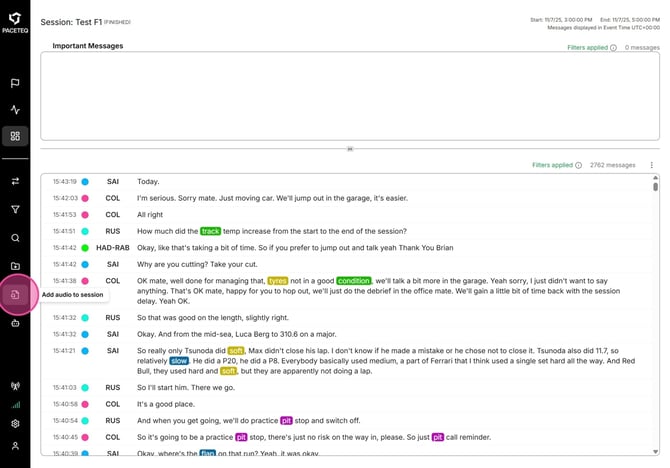
- In the “Add Audio to “[Session name]” modal, set Start Time (HH:MM:SS)
It defaults to the session start time. Change it if your recording begins later.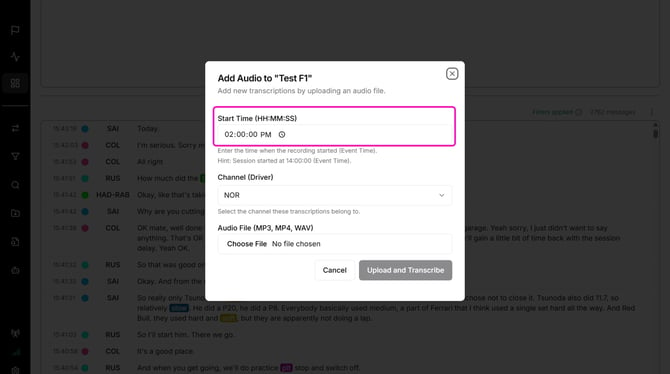
- Select Channel (Driver)
The list includes all drivers in your organization. If the list is empty, add drivers in Settings first. - Under Audio File, select .mp3, .mp4, or .wav
- Click Upload and Transcribe
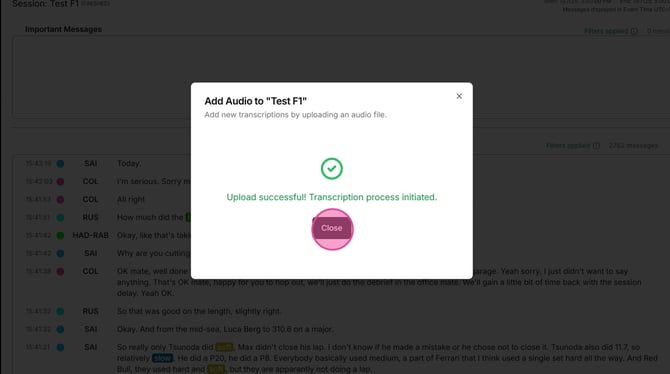
- When you see Upload successful! Transcription process initiated., click Close. You do not need to keep the modal open. Transcription continues in the background.
- Monitor Dashboard for new content
- An Audio Processing Activity banner may show progress at the top
- New messages appear in the message list as they are transcribed
Tip: Enter the recording start time in track time (event time), not your local time zone, unless they match.
Keep a stable connection during upload. Do not close the modal while upload is in progress.
If upload fails, click Try Again. Your inputs are preserved, so you do not have to start over.
You can leave the dashboard or return later. Processing time depends on file length and system load.