
Invite a User
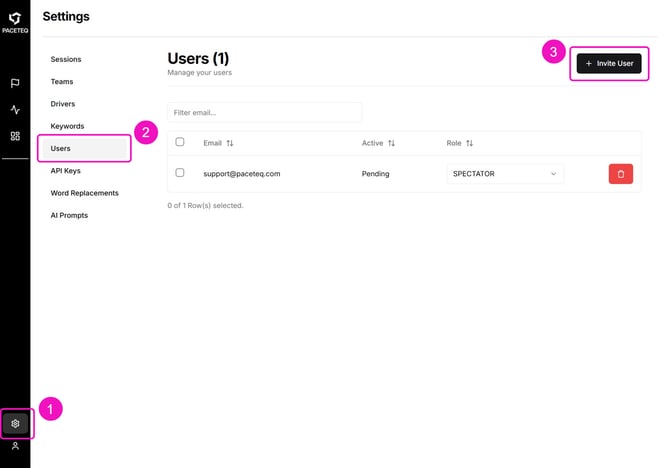
- Go to Settings
- Click Users
- Click Invite User in the top right corner
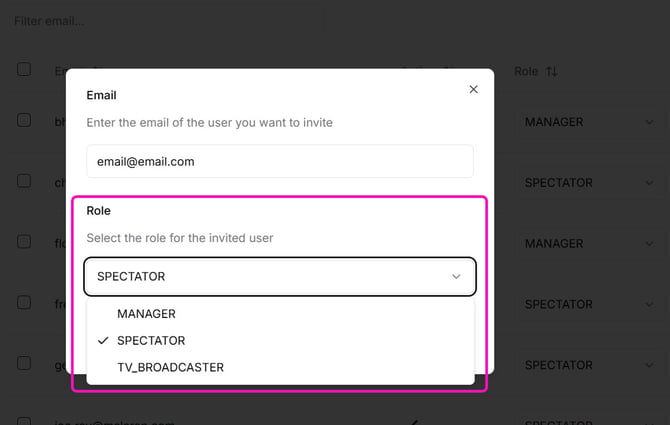
- Enter the person’s email address
- Select a role
- Click Invite User
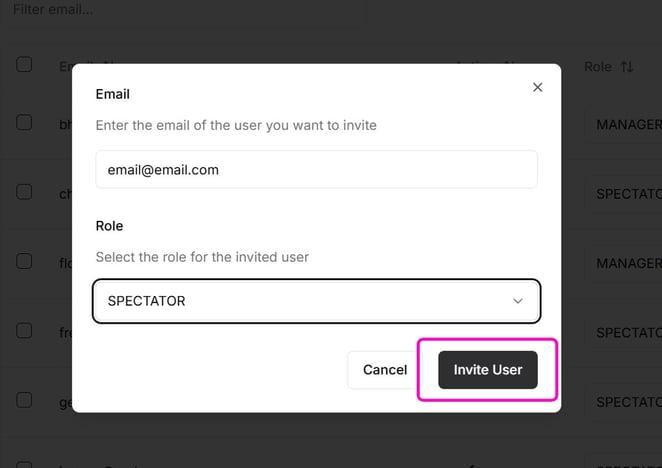
ⓘ Once you invite a user to your organization, ONE TRANSCRIPT sends them a welcome email with a link to the Login page. A one-time password (OTP) is sent when they begin the sign-in process.
If the user already has a ONE TRANSCRIPT account
They can still be invited to your organization. The user is added using the selected role, and no new account is created.
If the user is already a member of your organization
You cannot invite them again. If their access needs to change, update their role on the Users page instead.
Manage Existing Users
Use the Users page to update roles or remove access for existing users.
Update a role
- Select a new role from the Role dropdown
- Changes take effect immediately
Remove access
- Click the delete icon to remove a single user
- Use checkboxes and the bulk delete action to remove multiple users
Removed users lose access to your organization’s data. If they belong to no other organization, they see an Access revoked message when they sign in.
Understand User Status
The Active column shows whether a user has completed their first sign-in.
- A checkmark means the user has signed in.
- Pending means the user has been invited but has not signed in yet.
If a user remains in Pending status, confirm they are using the correct email address and login URL and have completed the OTP sign-in process.