
ⓘ Export is available on Dashboard only.
Export Messages
- Open Dashboard and load the session you want to export
- Click Export in the left sidebar, or press Ctrl + E
.jpeg?width=532&height=243&name=Exporting%20Race%20Radio%20Transcripts%20and%20Audio%20Snippets%20-%20Step%201%20(1).jpeg)
-
Select Messages from the pop-up
.jpeg?width=397&height=323&name=How%20to%20Export%20Driver%20Message%20Data%20and%20Audio%20Snippets%20-%20Step%2022%20(10).jpeg)
Select drivers
By default, Select all drivers is enabled and includes messages from every driver in the session.
To export messages from specific drivers only:
- Clear Select all drivers
- Click Select drivers...
- Choose one or more drivers from the list
.jpeg?width=492&height=427&name=Exporting%20Race%20Radio%20Transcripts%20and%20Audio%20Snippets%20-%20Step%208%20(1).jpeg)
Export important messages only
-
Enable Important messages only box to export only messages marked as important.
-
Leave this option disabled to export all matching messages.
Choose a delimiter
Select how columns are separated in the CSV file:
- Pipe ( | ) – Recommended when message text may contain commas.
- Comma ( , ) – Standard CSV format supported by most spreadsheet applications.
Select columns
-
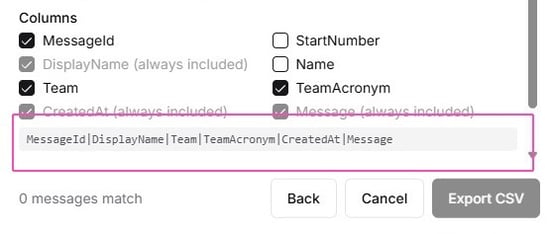
Choose which columns to include in the CSV export.
-
Some columns are always included and cannot be cleared, such as DisplayName, CreatedAt, and Message.
-
Select or clear the optional columns as needed. The selected columns are shown in the preview below the column list:
Filter by keywords
Use Filter by keywords to export only messages containing selected keywords.
⚠︎ Keywords must be configured in Settings → Keywords before they can be used in exports. See Create and Manage Keywords.
You can:
- Select individual keywords
- Select an entire keyword category
- Combine multiple keywords and categories
Export the file
After configuring your export options:
- Click Export
- The CSV file is downloaded to your device
Export Audio Snippets
-
Select Adio snippets from the Export dialog
.jpeg?width=422&height=343&name=How%20to%20Export%20Driver%20Message%20Data%20and%20Audio%20Snippets%20-%20Step%2022%20(11).jpeg)
⚠︎ Audio snippet exports use the same driver, important message, and keyword filters as message exports. See the message export steps above for how to configure them.
ONE TRANSCRIPT processes the audio files in the background and packages them into a ZIP file. The export appears in the Exports tab while it is being processed.
Download a completed audio export
- Select the Exports tab
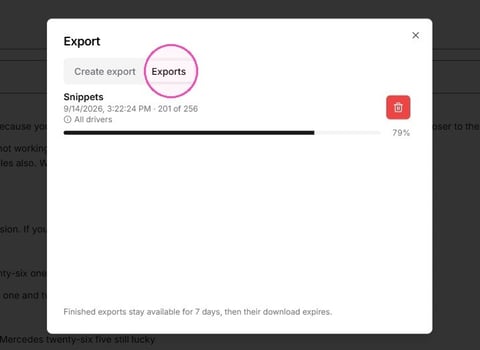
- Find the audio export
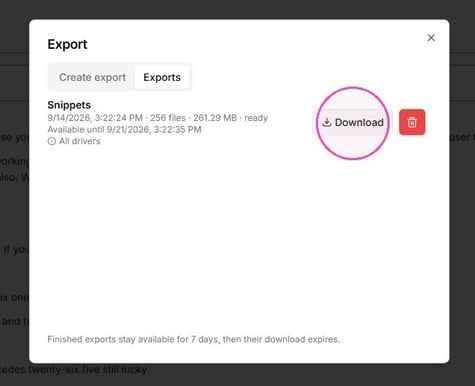
- Wait until its status is ready
- Click Download
Request a session recording — Session recordings provide the complete recording of a session, rather than individual audio files for selected messages.
⚠︎ Session recordings are not available as a self-service export. If you need a session recording, contact our Support Team.
-
If a recording export is created for your organization, you can download it from the session’s Exports tab when it is ready.
Export status
-
The Exports tab shows the status of audio and session-recording exports.
-
A completed export remains available for 7 days. After seven days, the download expires.