
ⓘ Filter settings are saved per session and restored when you return to the same session.
- Open Live Session or Dashboard
- In the left sidebar, click Filter or press Ctrl + J
- The filter panel opens on the right side of the screen.
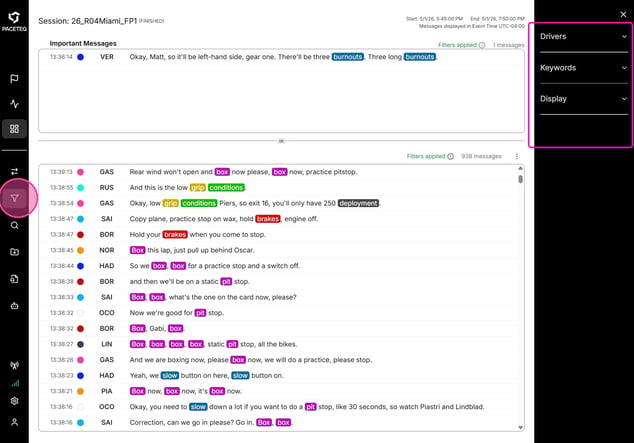
The filter panel contains three sections:
- Drivers - Keywords - Display
See Which Filters Are Active
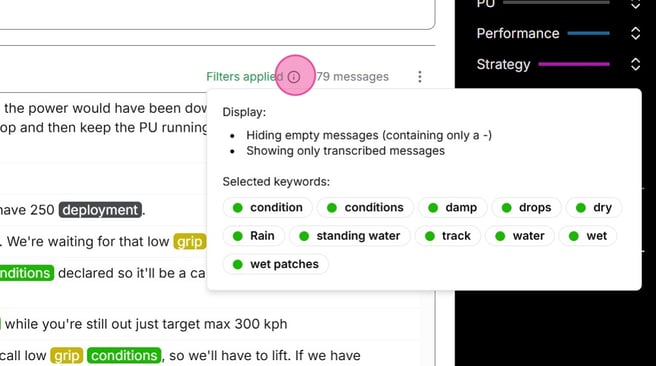
Above the message feed, you'll see one of the following indicators:
Filters applied — one or more filters are active.
No filters applied — the feed is showing all messages.
Click or hover over the information icon to view a summary of active filters.
Filter by Drivers
Use driver filters to display messages from specific drivers or teams.
Select Drivers
- Expand Drivers in the filter panel
- Click a driver name to include or exclude that driver
- Click Select All to select or clear all drivers currently shown
- Click a team row to select or clear all drivers on that team
When no drivers are selected, the feed displays messages from all drivers.
Filter the Driver List by Tags
ⓘ If your organization uses driver tags, a Filter by Tags option appears above the driver list.
- Open Filter by Tags
- Select one or more tags
- The driver list updates to show only drivers matching those tags
- Select drivers from the filtered list
Tip: Tags narrow the driver list but do not filter the feed. You must still select drivers.
⚠ If multiple tags are selected, a driver must match all selected tags to appear in the list.
Filter by Keywords
Use keyword filters to display messages containing specific terms.
⚠ Keywords must be configured under Settings → Keywords first. See Create & Manage Keywords.
- Expand Keywords in the filter panel
- Expand a category (colored bar)
- Click individual keywords to select or clear them
You can also:
- Click a category name to select or clear all keywords in that category
- Click Select All to select or clear all keywords
When keywords are selected, the feed shows only messages that match at least one selected keyword. Matching terms are highlighted using their category color.
Tip: If no messages appear, try selecting fewer keywords or confirm that the keywords appear in the session transcriptions.
Display Options
Display options control how messages appear in the feed.
|
Show transcribed only |
Hides messages that have not yet been transcribed |
|
Hide empty (-) messages |
Hides messages that contain only a dash (-) |
|
Exclude important messages from channel filters |
Keeps important messages visible in the Important Messages panel even when their driver is not selected |
Keep Important Messages Visible
When Exclude important messages from channel filters is enabled, important messages remain visible in the Important Messages panel even when their driver is filtered out.
Use this option to focus on selected drivers while keeping important messages from other drivers visible.