
⚠ Only Managers can create, edit, or revoke API keys.
Create an API key
-
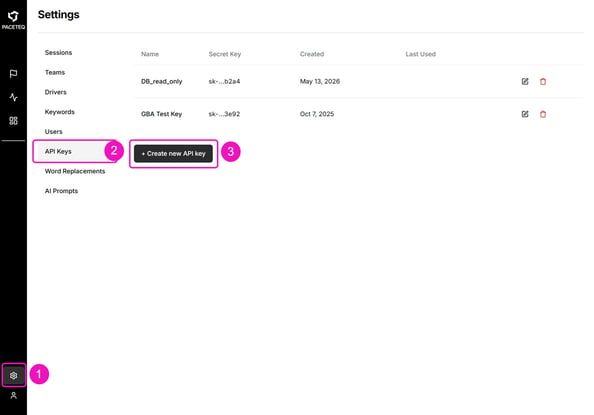
Go to Settings
-
Select API Keys
The page lists all active API Keys in your organization.
-
Click Create new API key
-
Enter a name to help identify the key (e.g. Export script)
-
Enable only the permissions required for the integration
-
Click Create API key
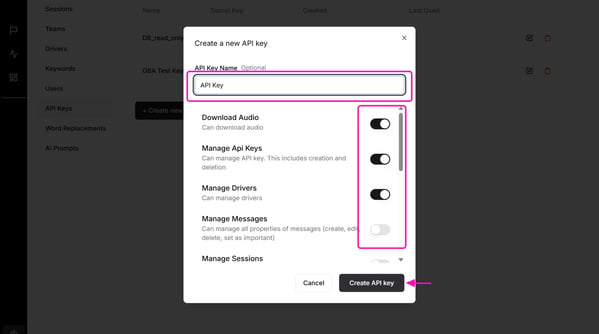
Tip: Read-only integrations typically only require Read Sessions and Read Stream permissions.
ONE TRANSCRIPT generates the API key and displays the full secret only once. After creation:
- Copy the key immediately
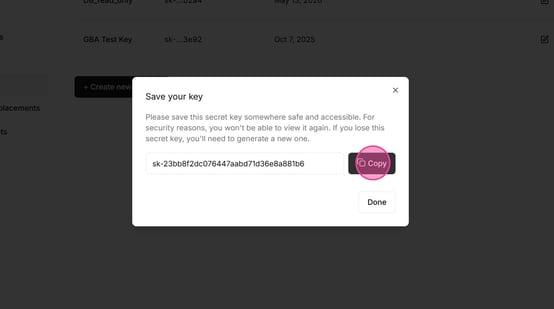
- Store it securely
- Click Done
⚠️ You cannot view the full secret again after closing this pop-up. If you lose it, you must revoke the key and create a new one.
Manage an API Key
Use the actions column in the API Keys table to edit or revoke an API key.
- Edit an API key to update its name or permissions. Changes apply to future API requests. The secret key remains unchanged.
- Revoke an API key to immediately disable access. The key can no longer be used and must be replaced with a new one if access is needed again.
API Documentation
The API reference is available at https://onetranscript.paceteq.net/api/reference. Sign in with your ONE TRANSCRIPT credentials to access it.
To download the OpenAPI 3.1.0 spec, click Download OpenAPI Document at the top of the reference page.
Include your API key in the Authorization header of every request:
Authorization: Bearer YOUR_API_KEY
See also:
Understand User Roles