
Before you begin, make sure that:
- A live session is scheduled and has started (or is about to start)
- Drivers have stream URLs configured under Settings → Drivers
Open Stream Health
- If “No future sessions defined” appears, no live session is configured. Create or schedule a session first under Settings → Sessions.
-
If a countdown timer appears, the session has not started yet. Stream Health becomes active once the session goes live.

Review the Summary Cards
-
Check the summary cards at the top of the page for a session-wide overview:
.jpeg?width=670&height=108&name=How%20to%20Upload%20and%20Transcribe%20Audio%20Files%20-%20Step%205%20(1).jpeg)
Each card shows the number and percentage of drivers in Healthy, Silent, and Failed states. Use this to quickly assess overall stream health without reviewing individual drivers.
For detailed definitions of each status, see Stream Health Overview.
Inspect Individual Drivers
-
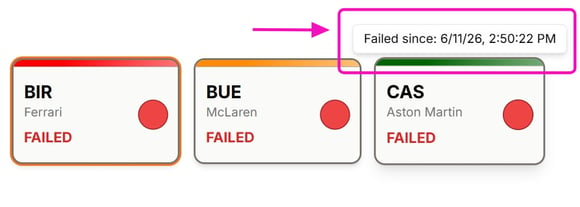
Scroll through the driver grid. Each card shows team color, driver name, team name, and status indicator.
-
Hover over a driver card to view details such as “Silent since,” “Failed since,” or duplicate URL conflicts.
Adjust Silent Threshold
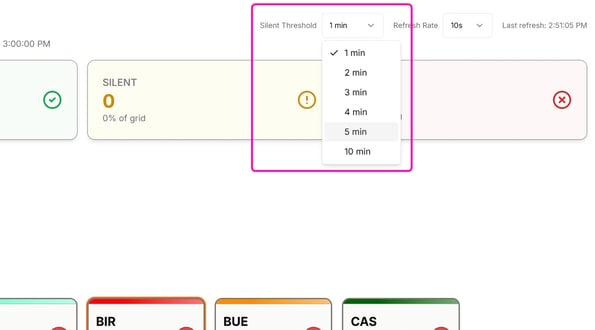
If drivers frequently switch to Silent during normal quiet periods, adjust the Silent Threshold.
-
Find Silent Threshold in the top-right controls
-
Choose a higher value (e.g., 3 min or 5 min)
-
Use a lower threshold (1–2 min) to detect audio dropouts earlier.
Adjust Refresh Rate
Control how frequently Stream Health updates.
- Find Refresh Rate in the top-right controls
- Choose 5s, 10s, or 15s
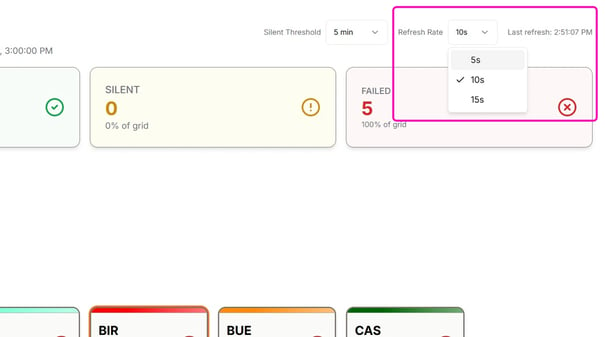
Check the “Last refresh” timestamp to confirm data is up to date.