
ONE TRANSCRIPT is your central hub for live and recorded transcription. Whether you are following a session in real time or reviewing past sessions, the interface is designed to keep your most important tools within easy reach.
Sidebar
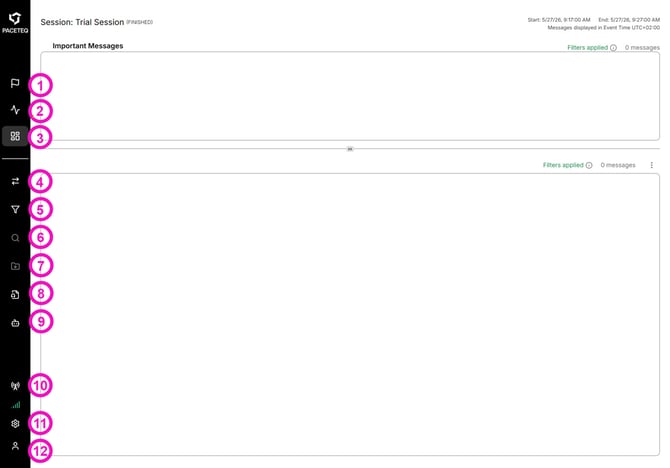
The sidebar is your primary navigation area on the left side of the screen. From here, you can access Live Sessions, Stream Health, Dashboard, Sessions, and Settings.
Live Session (1) — Open the Live Session to monitor active sessions and view real-time transcription. Track what’s happening now and stay focused on the current run.
Stream Health (2) — Check Stream Health during a live session to confirm your audio stream is connected and functioning correctly. If messages stop appearing in the Live Session, Stream Health is the first place to spot issues.
Dashboard (3) — Dashboard is your main workspace for viewing, searching, and managing transcription data. See important messages in a dedicated view, then use Broadcast Control to manage what’s sent to the broadcast output.
Switch Sessions (4) — Move between live or past sessions without leaving the page. Open a past session to review messages or switch back to the current one.
Filter Panel (5) — Open or close the filter panel to quickly narrow which messages you see. Use filters when you are looking for a specific type of message or want to reduce conversation traffic during a busy session.
Text Search (6) — Search across session messages with keywords to find specific moments fast.
Export Messages (7) — Download session messages for reporting, analysis, or sharing with your team.
Upload Audio (8) — Upload your own audio files and start a transcription session. This allows you to transcribe recordings outside of a live environment.
AI Assistant (9) — Ask for help summarizing or working with session information.
TV Broadcast (10) — Send selected team radio transcriptions and audio to external TV production systems for broadcast use.
⚠︎ Broadcast Control and AI Assistant are customized features and may not be available in your setup. If you have questions about your configuration, contact our Support Team.
Settings (11) — Manage your organization’s configuration, including sessions and drivers.
User Menu (12) — Manage your account and switch organizations.
See also: