
Before you begin monitoring live transcriptions or reviewing session data in ONE TRANSCRIPT, make sure you can access your account and understand how your organization is configured.
First-Time Login
ⓘ Once you are invited to join an organization, ONE TRANSCRIPT sends you a welcome email with a link to the Login page. Use this link to begin the sign-in process.
- Open your ONE TRANSCRIPT URL in your browser
- On the Login page, enter the email address you were invited with
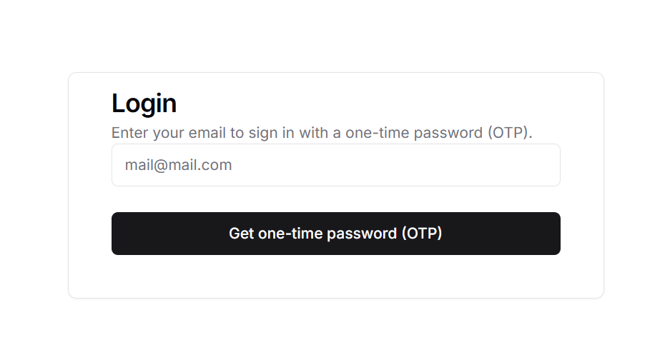
- Click Get one-time password (OTP)
- Check your inbox for the “Your ONE TRANSCRIPT Login Code” email
- Enter the 6-digit code on the login screen
⚠️ The code expires after 10 minutes and allows up to 3 incorrect attempts. If needed, request a new code from the Login page.
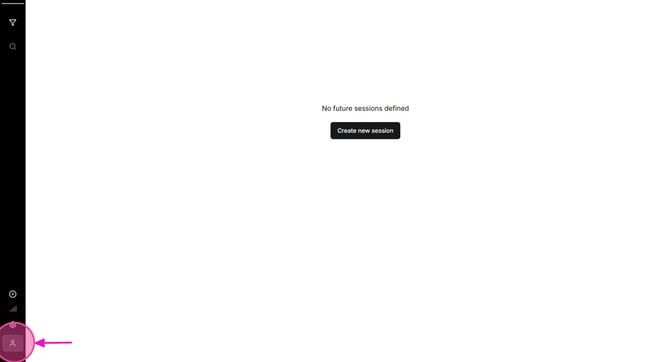
After successful login, you will see the main Live Session interface and the sidebar.
If you belong to more than one organization:
- Click your user icon in the sidebar
- Under Organization, choose the organization you want to work in
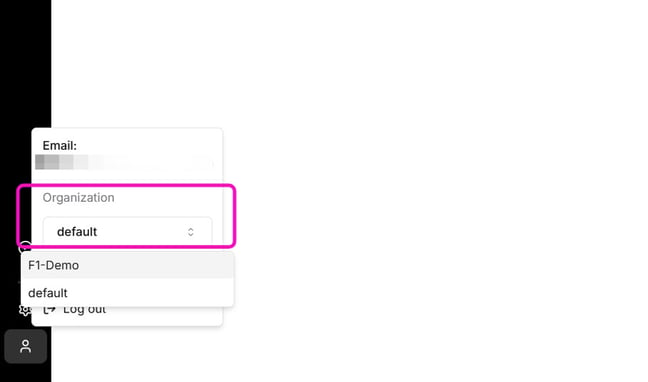
- The workspace reloads with the selected organization’s data and permissions
Organization Managers are responsible for configuring key settings, including teams, drivers, sessions, and user access. Some organizations may include pre-configured data depending on setup.
If you are unsure which settings or data should already be available in your account, contact our Support Team.