
What you can do with Countdown
- View upcoming sessions — See the next session and the one after it at a glance.
- Stay synchronized — Connected users see the same event schedule.
- View times in different time zones — Switch between your local time and track time when track time information is available.
- Publish and update schedules — Available users with the required admin license and plugins can publish or update the event schedule.
Plugin Features
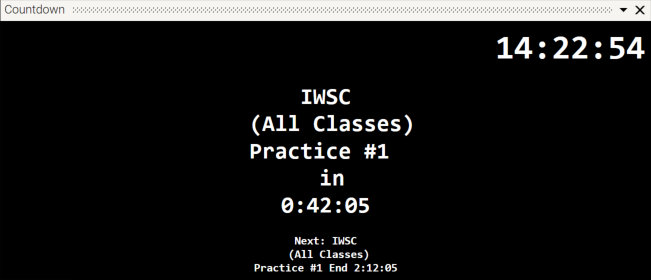
Current time — The clock in the top-right corner shows the current time.
-
By default, it displays your local system time. If Show track time is enabled and track time information is available, it displays the track time instead.
Main Countdown (Next Session) — The main countdown shows:
-
The name of the next scheduled session
- The time remaining until the session starts
- The plugin automatically selects the closest upcoming session and updates the remaining time in real time. When the session starts or ends, the next upcoming session becomes the main countdown.
Secondary Countdown — Displays the session after the next upcoming session, helping you plan ahead.
- This gives you an overview of what is coming up next and can help you plan activities between sessions.
Use Case: Useful for back-to-back sessions (e.g., qualifying followed by a race). Seeing both sessions helps your team plan driver briefings, car setup changes, or breaks between sessions.
Context menu — Right-click anywhere in the plugin to open the context menu.
Show track time
Use Show track time to switch the clock between your local time and track time.
- Default: Off
- Available when: Track time information is provided by the event schedule
When enabled, the clock displays the time at the track instead of your local system time.
⚠︎ The "Show track time" option is only available when the server has provided timezone information. If this option is grayed out, the event schedule may not include UTC offset data.
Recommended Practices
💡 For the best overview of the event, use Countdown together with session-based plugins such as Race Control or Track State. This lets you monitor the upcoming session while also keeping track of the current session status.
⚠︎ Countdown requires an active connection to the Countdown Server to receive the event schedule. If no events are displayed, verify your network connection and confirm that the event organizer has published the session schedule.
See also: