
ⓘ Keywords are shared across your organization and available in all sessions.
⚠︎ You need a Manager or TV Broadcaster role to manage keywords.
Create a Category
Keywords are grouped into categories (e.g. Safety, Strategy, Tyres). A category is a group of related keywords
Categories help organize related keywords and control how they are highlighted throughout ONE TRANSCRIPT.
- Go to Settings
- Select Keywords
- Click
+Add New Category - Enter a category name
- Click Add
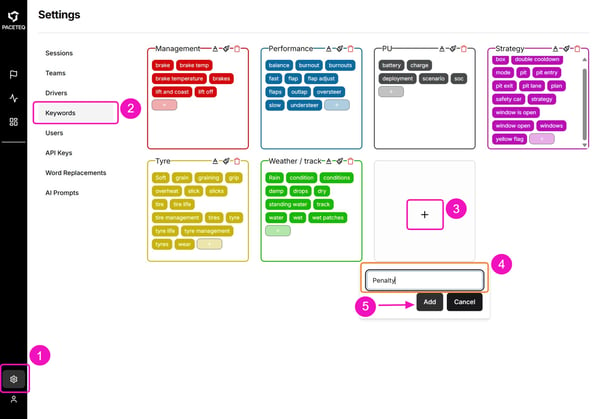
- The new category appears in the Keywords page.
Tip: Create separate categories for major topics such as Management, Weather, Performance, Strategy to keep highlights organized and easy to scan.
Watch the video below for a quick overview of Keyword configurations, or follow the steps in the article:
Add Keywords
- Click + button in your preferred category
- Enter a keyword or phrase
- Click Add
The keyword is added to the category and becomes available immediately.
Tip: Keywords can contain multiple words (e.g. Safety Car).
ⓘ Keywords cannot be renamed. To change a keyword, delete it and create a new one.
Edit a Category
You can update a category name and customize its colors.
On the category card:
- Click the category name to rename it
- Use the text color control to change text color
- Use the background color control to change highlight color
Color changes apply throughout ONE TRANSCRIPT, including:
- Keyword highlights in messages
- Keyword filters
- Export keyword selections
⚠️ Deleting a category permanently removes the category and all keywords it contains.
See also: