
Use Switch Sessions to review past sessions, export data, or upload audio for that specific event.
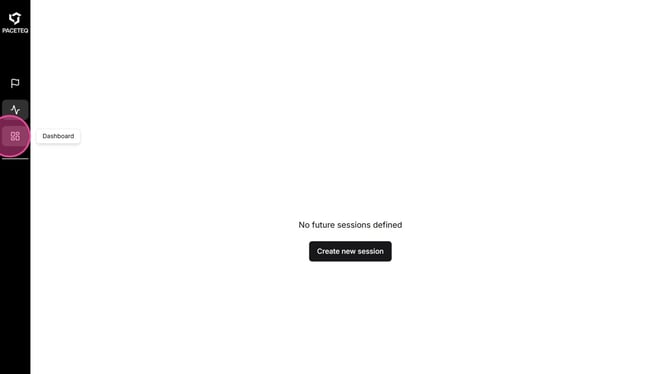
- Open Dashboard
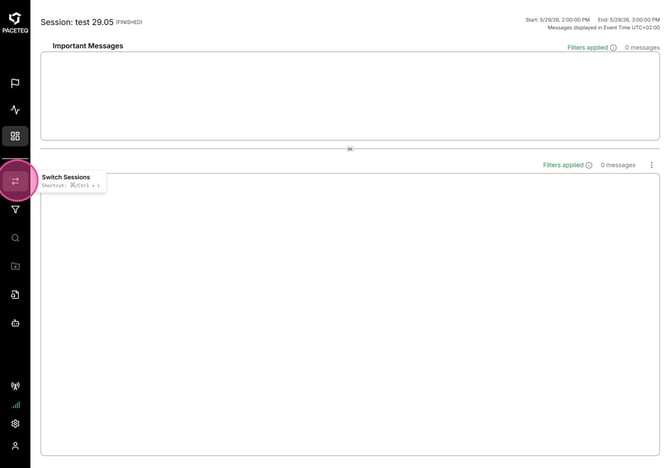
- In the left sidebar, click Switch Sessions, or press Ctrl + L
Use the search bar to filter sessions by name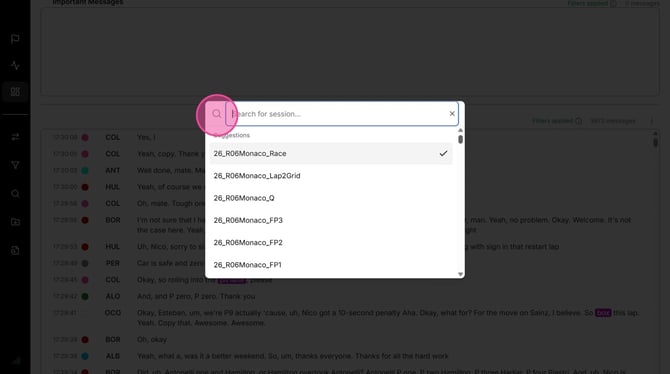
- Select the session you want
- The currently open session shows a check mark next to its name
- ONE TRANSCRIPT loads the selected session’s dashboard, messages, and settings. After switching, sidebar tools (filters, export, add audio, etc.) apply to the new session.
⚠︎ Live or in-progress sessions do not appear in the session switcher. Use Live Session for active events.
If a session is missing, confirm it is finished, belongs to your organization, and your account has access.
See also: