
|
Layout |
Description |
|
Single View |
One feed full size |
|
Split view |
Two stacked panels |
|
Three-Panel View |
One large panel and two smaller tiles |
| Four-Grid View | Four feed panels |
Select a preset to arrange your active feeds in that layout. You can then adjust the windows manually using the move and arrange tools.
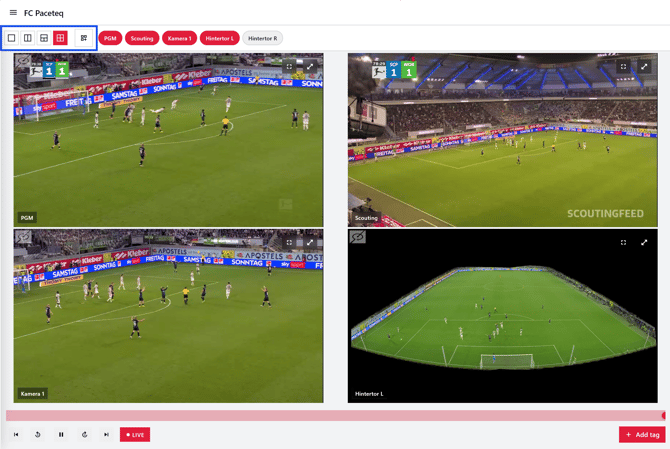
⚠ MatchVision supports up to five feeds. If you select five feeds, one feed may not be visible in the four-grid preset. Use the buttons in the top bar to turn feeds on or off as needed.
Resize, move, and close a camera feed
Each camera feed appears in its own tile. You can reposition, resize, expand, or close each tile.
To position the feed windows, select the custom grid preset icon to the right of the four-grid preset.
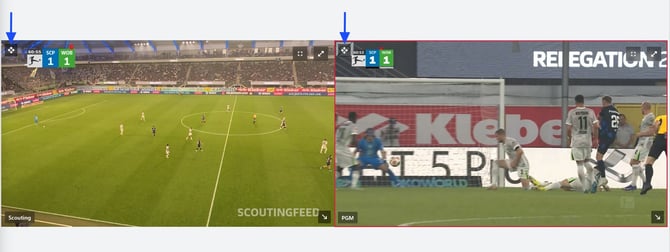
Move a feed tile
- In the top-left corner of the feed tile, click the drag handle
- Drag the tile to reposition it
Resize a player window
- In the bottom-right corner of the feed tile, tap and hold the arrow icon, then drag to resize the tile.
Expand a feed tile (two modes)
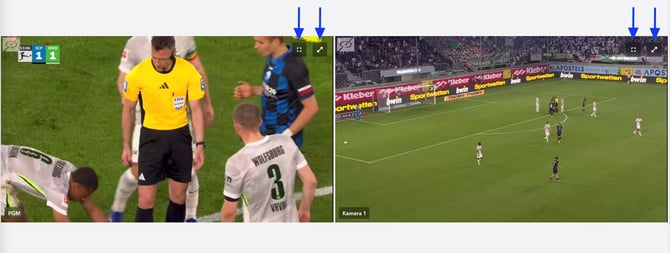
Each feed tile has two expand options in the top-right corner:
- Expand within the workspace (right button):
Select the right expand button to expand the feed within the available workspace while keeping the Tags sidebar visible. - Full screen (left button):
Select the left expand button to open the feed in full-screen mode.
Exit full screen
- In full screen mode, click the icon in the top-right corner to exit and return to the match workspace
- Click the feed’s button in the top bar to close the feed tile. The camera feed is removed from your layout.
Close a feed
💡 If you close a feed by mistake, select its feed button in the top bar to enable it again (e.g. PGM, Scouting, Kamera 1).