
💡New to runs? Read Runs and Run Sheet Overview first. Then Create your own Run Sheet Layout.
To view your Run Sheet:
- Go to OPERATIONS → Protocol → Run Sheet Layouts
ⓘ The Run Sheet always opens with the layout set as Default Run Sheet Style in your profile. See Activate and Use Run Sheet Layoutsto change it.
Run Sheet header
The Run Sheet header displays information about the selected run and provides access to its editing controls.
Use the selection bar at the top of the page to choose the session and car you want to work with.

- Series: Select the race series
- Season: Select the season
- Event: Select the event. Events are identified by their dates.
- Session: Select the session, such as Test. The icon indicates its status:
- Bell: The session has not started
- Hourglass: The session is live
- Checkered flag: The session has finished
- Car: Select the car. The list displays its start number and, if configured, its chassis and driver. You only see cars assigned to you.
Session time warnings
ONE RACEHUB displays a warning when a run falls outside the scheduled time of its session.

|
Warning |
Meaning |
|---|---|
|
🟡 Yellow |
The run's end time is later than the session's end time. |
|
🔴 Red |
The run's start time is later than the session's end time. |
⚠︎ If a warning appears, update the session under Admin → Events before changing the run times. See Add Sessions for editing instructions.
Run identification and summary
The Run Sheet header displays several fields that identify the run and summarise its data. Use the dropdown below to look up what each field means.


Run controls

| Control | Description |
|---|---|
| Ignore in timing | When selected, the Lap Time Service skips this run. Use it for a run that should not be timed, such as a run on the grid. |
| Info | Displays a short note stored on the run. |
| Delete | Deletes the run. Available to Admin, Chief Engineer, Car Engineer, and Tyre Engineer. The option is unavailable while the run is locked or while its Lap Time Service session is still live. |
| Lock / Unlock | Locks or unlocks the run. A locked run cannot be edited. |
Run start and end times
-
The Lap Time Service automatically populates the Start Time and End Time using pit lane triggers.
-
You can edit these values manually to correct a timing error or adjust a run so that its car data matches correctly.
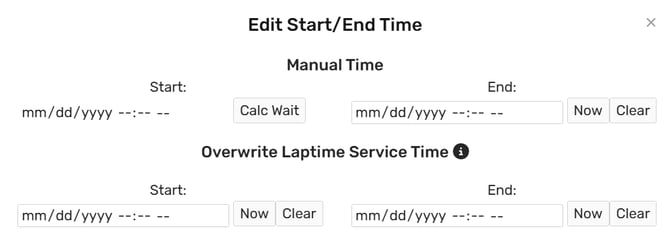
⚠️The Lap Time Service takes precedence over manual changes. If the service later sends a different timestamp for the same run, it overwrites your manual entry.