
Understand the Message Feed Layout
The message feed is divided into several areas that help you monitor session activity and work with transcriptions efficiently.
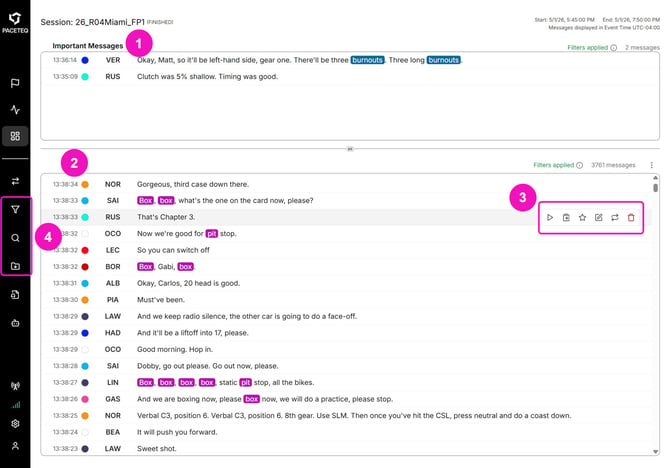
Important Messages Panel (1) — Messages marked as important appear in a dedicated panel above the main feed, helping you keep track of key communications during a session.
Main Message Feed (2) — The main feed displays transcriptions in chronological order.
Each message includes:
- Driver or channel
- Timestamp
- Transcribed text
During a live session, new messages appear automatically as audio is transcribed.
Message Actions (3) — Select a message to access actions that help you review, organize, and manage transcriptions:
- Play audio, copy text, edit messages, mark messages as important, and delete them.
For more information, see Message Actions.
Sidebar Tools (4) — Use the sidebar to access tools that help you work with transcriptions.
|
Tool |
Purpose |
|
Filter |
Narrow the messages shown in the feed |
|
Search |
Find messages containing specific text |
|
Export |
Download messages from a session |
See also: